Guide: How to Copy Text from LinkedIn Posts – 2025
Have you ever come across a LinkedIn post so good you wanted to save or share part of its text—only to realize you couldn’t highlight or copy it? You’re not alone.
In 2025, LinkedIn’s desktop and mobile apps often block text selection to encourage users to share links instead of copying content. We encourage you to share the content, too. It is good for the author and good for LinkedIn. While this protects creators, it can be frustrating for professionals who want to save inspiring quotes, take notes, or re-share snippets with proper credit.
Don’t worry—we’ve got you covered. This guide walks you through simple, up-to-date methods for copying text from LinkedIn posts, whether you’re on desktop or mobile. We’ll also share formatting tips and important copyright considerations to keep your copying ethical.
How to Copy LinkedIn Post Text on Desktop
On a desktop computer, copying text is usually much easier than on mobile. Here are two methods you can use.
Method 1. Native Copy (The Easy Way) Most of the time, you can highlight and copy LinkedIn post text directly:
Open LinkedIn in your browser.
Click on the timestamp or the “…” menu to open the post in a dedicated tab.
Highlight the text you want, then right-click and select Copy.
Pro Tip: Paste into a plain text editor like Notepad first to strip out hidden formatting.
Method 2. Advanced: Using Inspect Tool If highlighting doesn’t work because LinkedIn has blocked text selection, here’s a simple workaround:
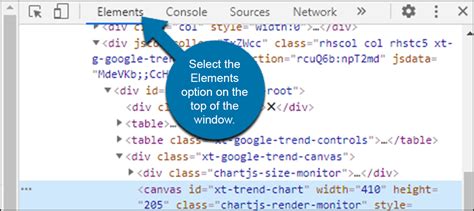
1. Open DevTools in Chrome/Firefox Right-click anywhere on the post and select Inspect, or press Ctrl+Shift+I (Windows) / Cmd+Option+I (Mac).
Inspecting the post text in Chrome’s developer tools.
2. Locate and Copy the Text In the panel that opens, hover over the <span> or <p> elements until the post text highlights on-screen.
Right-click → Copy → Copy innerText.
Copying text from the element in Chrome DevTools.
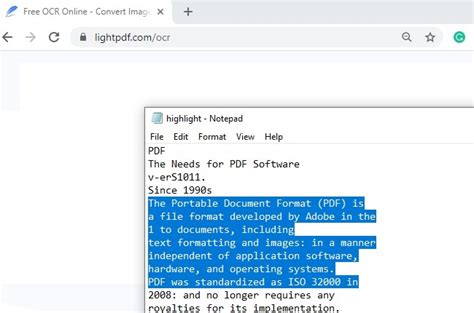
3. Paste into a Document Paste the text into a plain-text editor like Notepad to clean up the formatting.
How to Copy LinkedIn Post Text on Mobile (iOS & Android)
Here’s where things get tricky. LinkedIn’s mobile apps don’t allow you to select post text directly, (and we understand the purpose behind this), but you can use screenshots combined with optical character recognition (OCR).
iPhone (iOS 16–18)
Take a screenshot of the LinkedIn post.
Open the screenshot in your Photos app.
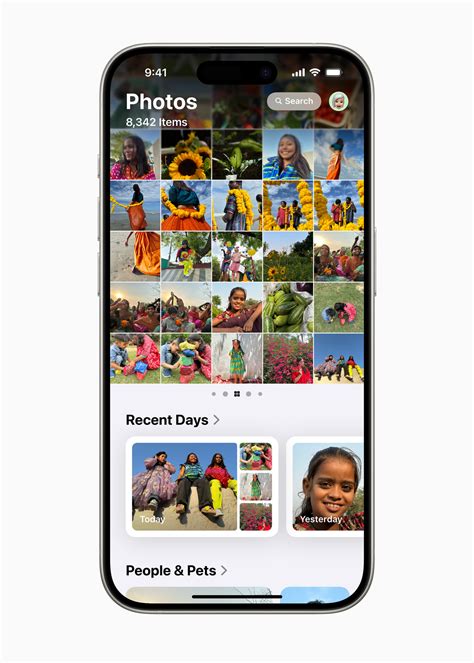
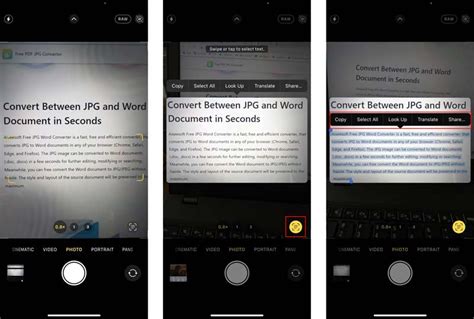
Long-press on the text in the image. iOS 18’s Live Text will recognize it and let you highlight.
Adjust the selection if needed, then tap Copy.
Bonus Tip: You can also send the copied text straight to Notes or Mail for safekeeping.
Live Text on iOS 18 lets you copy text from screenshots.
Android (13–15)
Take a screenshot of the LinkedIn post.
Open the image in Google Photos.
Tap the Google Lens icon.
Switch to the Text tab, highlight the desired text, and tap Copy.
Google Lens on Android pulls text from screenshots in seconds.
Using Third-Party Tools (Desktop & Mobile)
If you frequently copy text from LinkedIn or other apps:
OCR Apps: Adobe Scan, Microsoft Lens, Google Keep
Browser Extensions: Copyfish, Project Naptha
These tools work great for grabbing text from screenshots or images. Keep Formatting Clean When Pasting Pasting copied text into LinkedIn or documents can sometimes create odd spacing.
Solution:
Paste into a plain-text editor (Notepad, TextEdit) first.
Clean up formatting there, then copy again before pasting into LinkedIn.
Copy Responsibly: Attribution & Ethics
LinkedIn discourages text copying to protect intellectual property. We strongly believe you should respect the author. If you do copy a portion of the article:
ALWAYScredit the original author.
Only use short excerpts, never full posts.
Whenever possible, share the post link instead of copying large chunks of text. Sharing benefits everyone – the creator, your audience, and LinkedIn.
Stay respectful and in compliance with copyright guidelines.
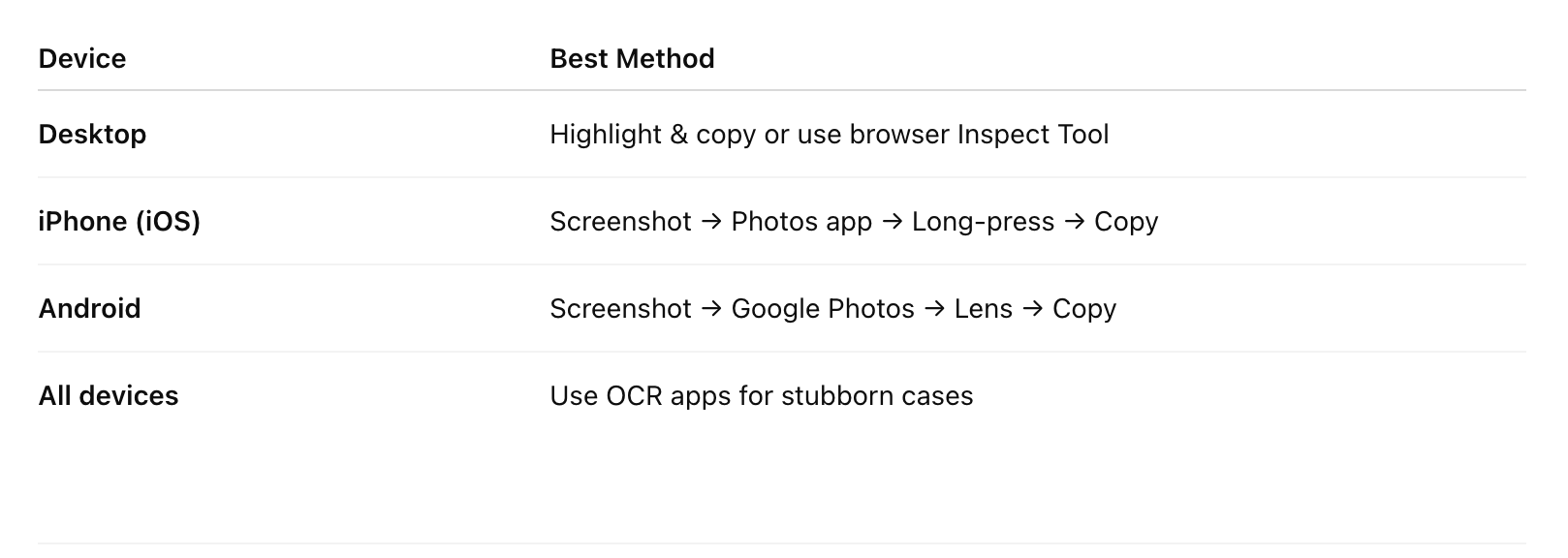
Quick Cheat-Sheet
Quick Cheat Sheet Copy Text from LinkedIn
Updated July 2025 to include iOS 18, Android 15, and LinkedIn 7.x+ UI changes.
Kit Mullins
About the Author
Kit Mullins, co-owner of Jemully Media, LLC, has been a leader in digital marketing for more than twenty years. A writer, designer, and developer, Kit enjoys travel, photography, and Bible study. With six kids and fifteen grandkids, she has no choice but to find ways to be creative.